

Küsimused ja vastused
Kuidas kasutada Pulsar seadet Stream Vision äpiga?
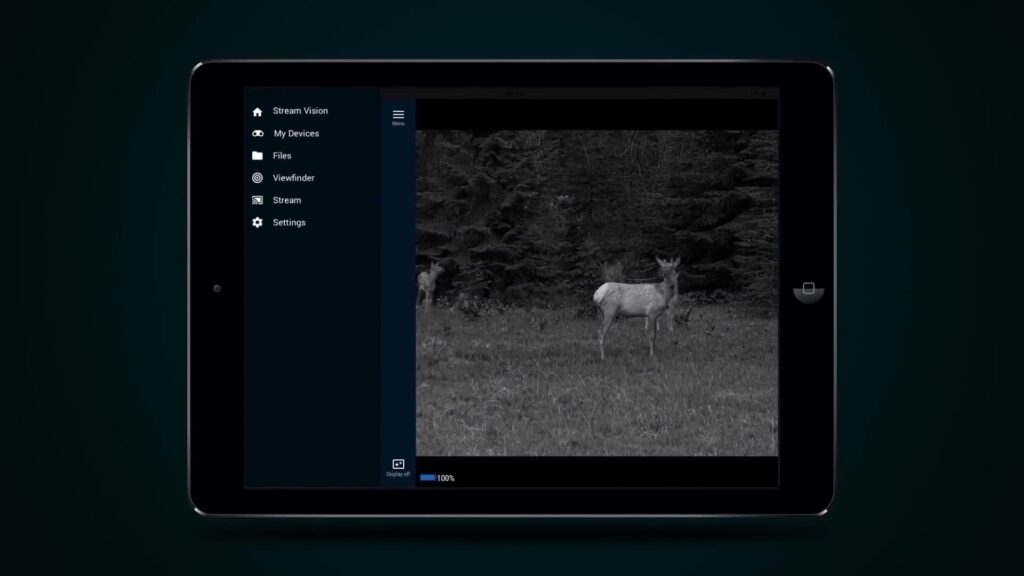
Pulsari termokaamerate ja öövaatlusseadmete tarbeks on loodud äpp Stream Vision. Mida see endast kujutab ja kuidas seda kasutada?
Mida Pulsar Stream Vision äpiga saab teha?
Pulsar Stream äpp on multifunktsionaalne rakendus, mis võimaldab:
- laadida alla seadmest pilte ja videoid nutiseadmesse;
- kustutada pilte ja videoid seadmest;
- muuta seadme seadistusi;
- uuendada Pulsar seadme tarkvara;
- vaadata Pulsar seadme kaamerapilti nutiseadme ekraanilt;
- striimida kaamerapilti YouTube’i.
Kuidas hankida omale Stream Vision äpp?
Stream Vision äpp on saadaval Android seadmetele Google Play ja iOS seadmetele Apple Store kaudu. Kasuta kas vastavaid alltoodud linke või kasuta vastavates rakendusturgudes otsingut “Stream Vision”.
Kui tarkvara on juba nutiseadmesse paigaldatus, soovitame aeg ajal kontrollida, kas selle jaoks on saadaval värskendus ja uuendada see viimasele versioonile.
Kas Stream Vision äpp on saadaval ka süle- ja lauaarvutitele?
Stream Vision äpp on saadaval üksnes iOS ja Android nutiseadmetele kuna ka termokaamerad ise on mõeldud kasutuseks välitingimustes, kus just nutiseade on kõige praktilisem.
Kuidas ühendada Pulsar seadet nutiseadmega?
Andmesideks kasutatakse nutiseadme ja Pulsar seadme vahel WiFi ühendust, milleks on seadmes WiFi moodul.
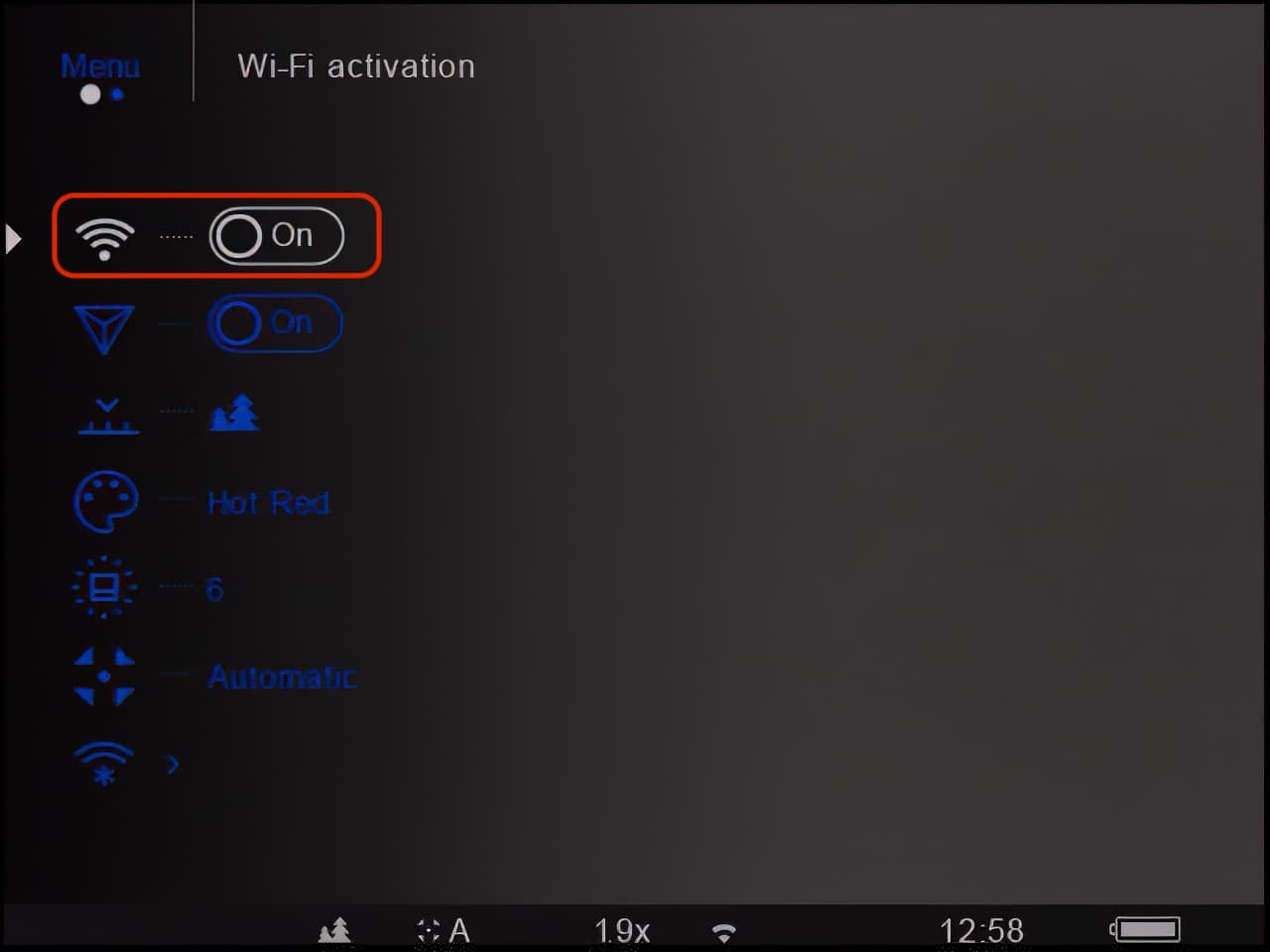
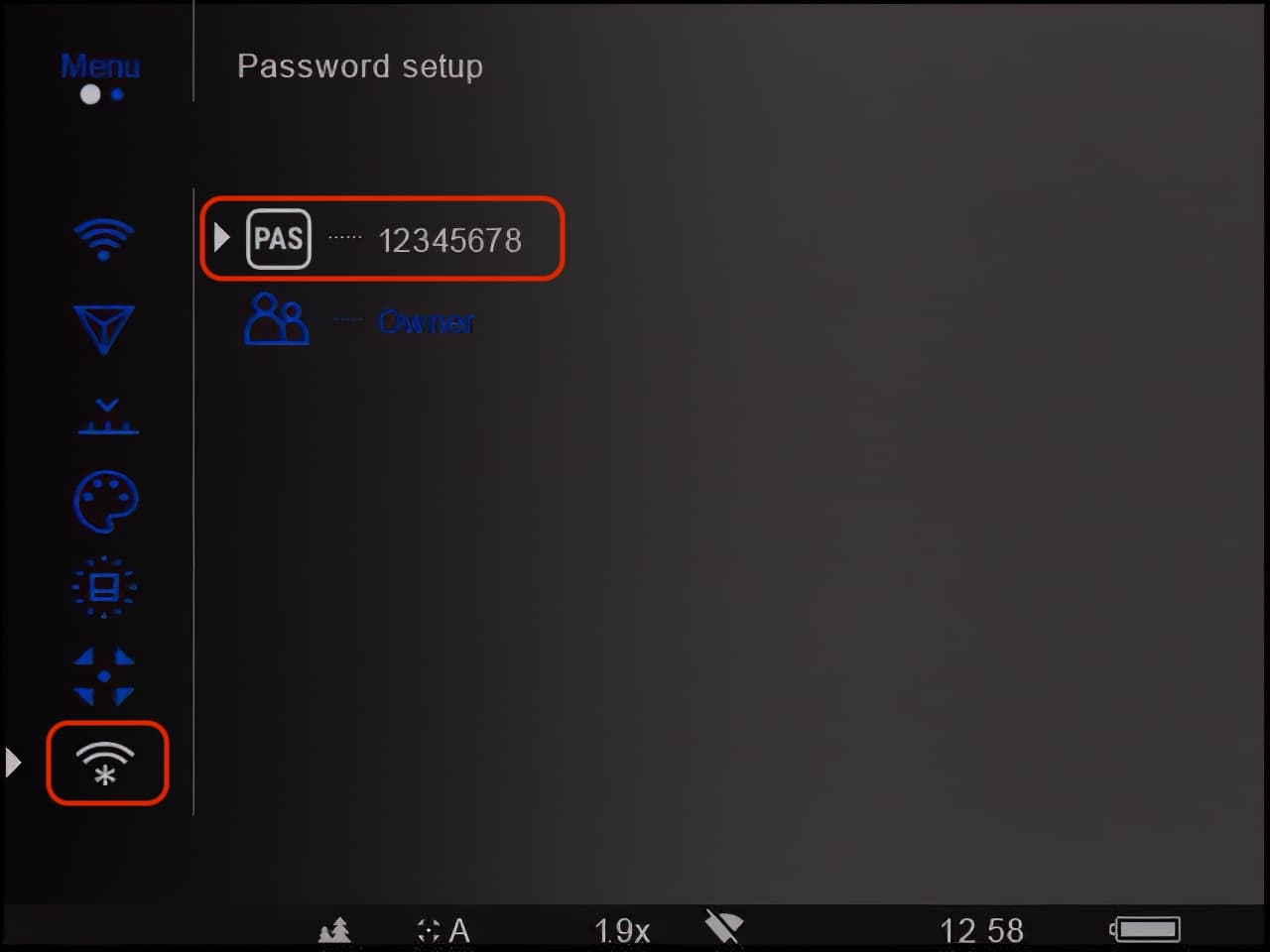
- Aktiveeri Wifi moodul Pulsar seadmes.
- Aktiveeri WiFi nutiseadmes.
- Ühenda Wifi Pulsar seadme Wifi võrku. Võrgu nimi on kombinatsioon seadme mudelist ja seerianumbri neljast numbrist (näide Helion XP38 seerianumbriga 12345678 puhul on võrgu nimeks Helion_5678).
- Ühendamisel küsitakse parooli, mis tehase seadete puhul on vanema firmware puhul on 12345 ja uuema puhul 12345678. Juhul kui oled parooli ise muutnud tuleb see järele vaadata termokaamera seadetest.
- Veendu, et ühendus on loodud.
- Käivita Pulsar Vision äpp oma nutiseadmes.
- Äpp ühendab end automaatselt termokaameraga ja saad asuda seda kasutama.
NB! iOS 14 nutiseadmes peab lubama äpi seadetes “Local Network” ja “Mobile Data” kasutuse.
Kuidas uuendada termokaamera tarkvara (firmware)?
Seadme tarkvara uuendamiseks tuleb kasutada Stream Vision äppi. Ühtlasti on vajalik nutiseadmes tarkvaruuenduse ajaks mobiilse internetiühenduse olemasolu ja olema lubatud mobiilse andmeside kasutus. Enne tarkvarauuendust lae Pulsar seadme aku täis.
- Ühenda nutiseade Stream Vision äpiga.
- Vali äpis sektsioon My Devices
- Klõpsa nupul “Check for Update”
- Jälgi ekraanile tulevaid juhiseid.
NB! Hoia tarkvarauuenduse ajal nutiseade võimalikult lähedal Pulsar seadmele.
Uuenduse progressi saab jälgida seadme pildiotsikust. Peale õnnestunud tarkvarauuendust lülitatakse Pulsar seade välja. Vaata lähemalt alltoodud videost.
Kas Pulsar seadmega saab ühendada korraga mitut nutiseadet?
Ei, Pulsar seadmed toetavad ainult ühte ühendust korraga.
Kas Stream Vision äppi saab kasutada teiste tootjate seadmetega?
Ei, Stream Vision äpp on mõeldud üksnes kasutuseks Pulsar seadmetega.
Video: Stream Vision kasutus iOS seadmega
Vaata videost, kuidas kasutada Stream vision äppi iOS seadmega.
Video: Stream Vision kasutus Android seadmega
Vaata videost, kuidas kasutada Stream Vidion äppi Android seadmega.